
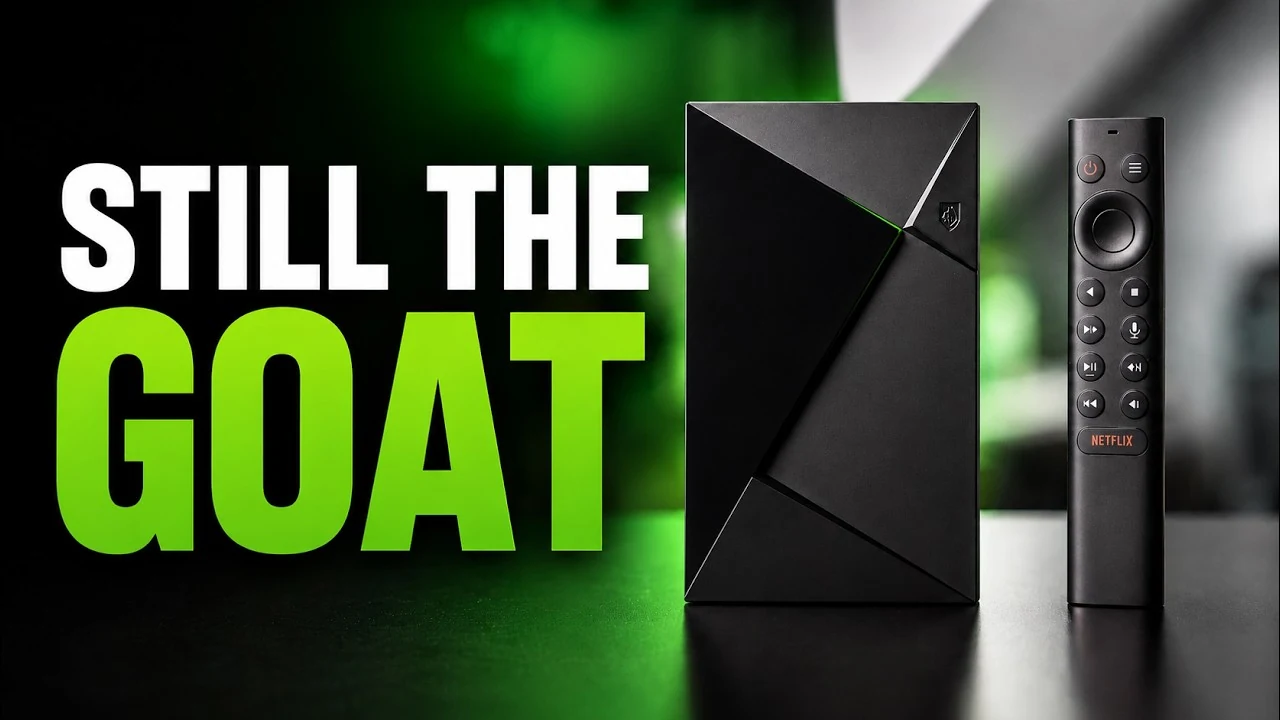
The original Nvidia Shield TV has had an extraordinary run, but ten years of apps, updates, launchers, and background services had left mine feeling sluggish.
I used Codex and Android Debug Bridge (ADB) to inspect it over my local network. The biggest issue was simple: Projectivy Launcher was visible, but Android TV Home was still registered as the real home app and continued running behind it.
The steps below make Projectivy the actual home app, disable the unused stock launcher components, shorten Android’s animations, compile Projectivy for faster startup, and verify that everything survives a reboot.
These commands are specific to my Shield TV setup. ADB provides administrator-like access, so review every command before running it. This is a responsiveness tune-up, not a hardware upgrade.
Before you start
Install and configure Projectivy Launcher before disabling the stock launcher. You will also need Google’s ADB platform tools. On macOS:
brew install android-platform-toolsEnable network debugging on the Shield:
- Open
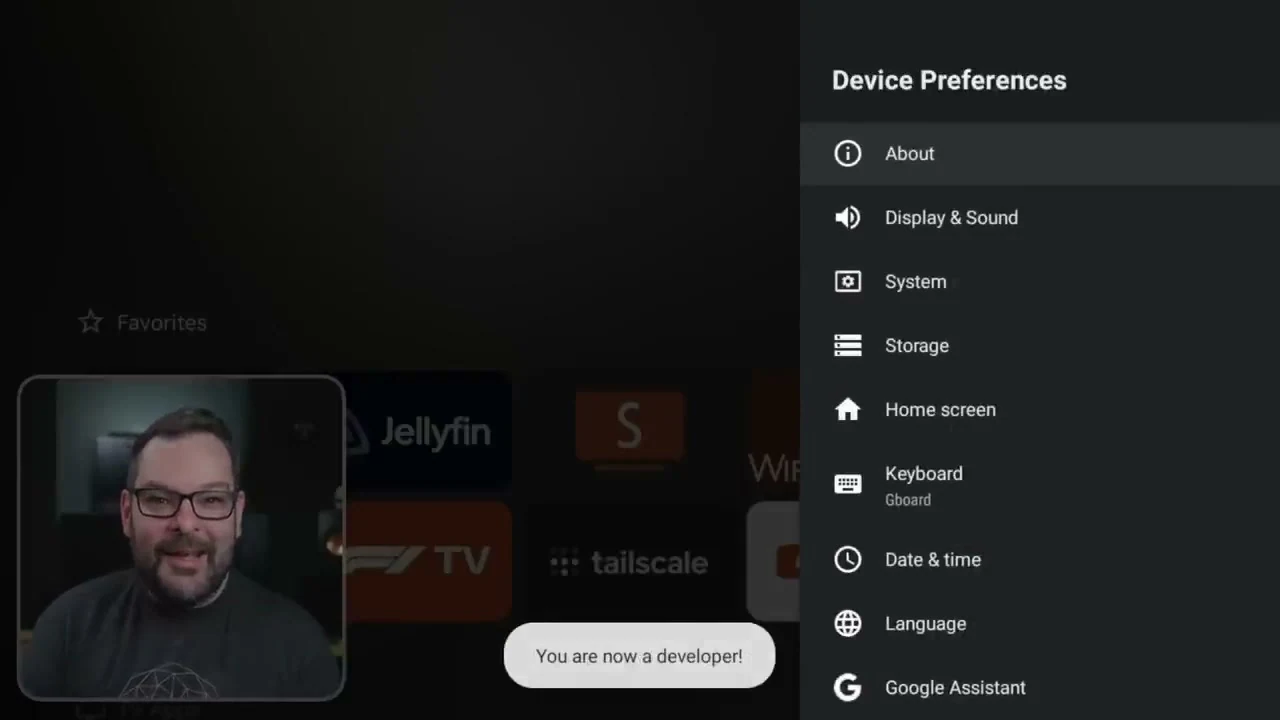
Settings > Device Preferences > About. - Select
Buildseven times. - Return to
Device Preferences > Developer optionsand enableNetwork debugging. - Find the Shield’s IP address under
Network & Internet.
Connect from your computer, substituting the Shield’s address:
adb connect YOUR_SHIELD_IP:5555
adb devices
Accept the authorization prompt on the TV. The device should appear as device rather than unauthorized or offline.
Before changing anything, record the current launcher and animation settings:
adb shell cmd package resolve-activity --brief \
  -a android.intent.action.MAIN \
  -c android.intent.category.HOME

adb shell settings get global window_animation_scale
adb shell settings get global transition_animation_scale
adb shell settings get global animator_duration_scale
Apply the changes
Run these commands one at a time:
adb shell cmd package set-home-activity \
  com.spocky.projengmenu/.ui.home.MainActivity

adb shell pm disable-user --user 0 com.google.android.tvlauncher
adb shell pm disable-user --user 0 com.google.android.tvrecommendations
adb shell pm disable-user --user 0 com.netflix.ninja

adb shell settings put global window_animation_scale 0.5
adb shell settings put global transition_animation_scale 0.5
adb shell settings put global animator_duration_scale 0.5

adb shell cmd package compile -m speed -f com.spocky.projengmenu
adb shell am kill-all
adb reboot
What they do:
set-home-activitymakes Projectivy Android’s real home app instead of leaving it layered over Android TV Home.- The two Google
disable-usercommands disable the stock launcher and recommendations for user 0. They do not remove the packages, so the change is reversible. - Disabling
com.netflix.ninjais optional. It neutralized the dedicated Netflix remote button in my setup, but also disables the Netflix app. Skip it if you use Netflix. - The three animation settings halve transition times. This changes perceived responsiveness rather than processor performance.
- The final commands compile Projectivy in speed mode, stop disposable background processes, and reboot.
I deliberately left Chromecast, Google Play Services, Bluetooth, voice control, media providers, and Nvidia system services alone.
Verify the result
Reconnect after the reboot and check the active home app, animation values, and relevant processes:
adb connect YOUR_SHIELD_IP:5555

adb shell cmd package resolve-activity --brief \
  -a android.intent.action.MAIN \
  -c android.intent.category.HOME

adb shell settings get global window_animation_scale
adb shell settings get global transition_animation_scale
adb shell settings get global animator_duration_scale

adb shell ps -A | grep -E 'projengmenu|tvlauncher|tvrecommendations|netflix'
The home resolver should return Projectivy, each animation value should be 0.5, and the disabled packages should not have running processes. Test the home button, voice input, casting, Bluetooth remote, and your usual apps.
Roll everything back
These commands re-enable the disabled apps, restore normal animation timing, and select Android TV Home again:
adb shell pm enable com.netflix.ninja
adb shell pm enable com.google.android.tvlauncher
adb shell pm enable com.google.android.tvrecommendations

adb shell settings put global window_animation_scale 1.0
adb shell settings put global transition_animation_scale 1.0
adb shell settings put global animator_duration_scale 1.0

adb shell cmd package set-home-activity \
  com.google.android.tvlauncher/.MainActivity

adb reboot
If that stock component name changes in a future Shield release, enable the packages, reboot, and choose Android TV Home from the on-screen home-app picker instead of guessing another activity name.
A Shield update may re-enable system packages, so recheck the resolved home app afterward. Once you are finished, turn off Network debugging to be on the safe side. Happy Shielding.